How to Create a Professional Quote with Eazy Biz
Create a professional quote in Eazy-Biz with clear line items, pricing, terms and your business details. Includes a worked example and a checklist before sending.
A potential client asks for a quote. You know what the work will cost, but sending a number in a WhatsApp message leaves a lot unanswered. What is included? When can you deliver? How long does the price stand?
A professional quote puts those answers in one document. It helps the client understand your offer and gives both of you something clear to refer back to.
This guide walks you through creating a quote in Eazy-Biz, from choosing a template to downloading the finished PDF. There is also a worked example you can adapt for your own business.
The short answer
To create a professional quote in Eazy-Biz:
- Open Quotes and click New Quote.
- Choose a template and check the quote number and dates.
- Add your business details, logo and client details.
- Describe the work in clear line items, with quantities and rates.
- Check the totals and add your scope, exclusions and payment terms.
- Preview the document, click Create Quote, then download and send the PDF.
The template makes it look consistent. The details make it useful.
What makes a quote professional?
A professional quote should let the client answer four questions without calling you:
- What am I getting? The work, products or deliverables are specific.
- What will it cost? Quantities, prices and the final total are easy to follow.
- What are the conditions? The quote explains timing, payment stages and anything excluded.
- What do I do next? The client knows how to confirm they want to proceed.
Your logo and layout help, but they cannot fix a vague description. A neat quote that says only "Services - R5,000" still leaves the client guessing.
Step 1: Start a new quote and choose a template
Sign in to Eazy-Biz and open Quotes from the main menu. Click New Quote. If your list is empty, you can also use Create Quote in the middle of the page.
Choose one of the templates available on your plan. Quotes and invoices use the same template system, so you can keep a consistent look from the first proposal to the final invoice.
Pick a layout that suits the information you need to show. A quote with several detailed line items needs room for descriptions. A short quote may work well with a simpler layout.
For more on choosing a layout, see how to choose an invoice template. The same principles apply to quotes: clear text, readable totals and a layout that fits your business.
Step 2: Check the quote number and dates
The quote form includes Quote Number, Date and Valid Until.
Eazy-Biz generates a quote number for you, starting with QT-001, and fills in the dates. Review them before moving on.
- Quote Number gives you and the client a reference for emails and follow-ups.
- Date shows when you prepared the offer.
- Valid Until tells the client how long the quoted price is available.
Choose a validity period that fits the job. If you depend on a supplier's price, check how long that price is available before setting your own date.
Tip: The valid-until date is not the delivery date. Put your delivery estimate in the terms so the client can tell the two apart.
Step 3: Add your business and client details
Use Upload Logo to add your business logo, then check Your Business Details. Make sure the business name, email, phone number and address are correct.
Under Bill To, enter the client's details. Use the name of the person or business receiving the quote, and check the email address carefully.
Before continuing, ask yourself:
- Is this the business name the client knows me by?
- Can they easily contact me with a question?
- Is the quote addressed to the right person or company?
- Have I removed any details left over from another job?
For repeat work, consistent client records save time and prevent mistakes. Our guide to organising client details, quotes and invoices explains how to keep that information tidy.
Step 4: Turn the work into clear line items
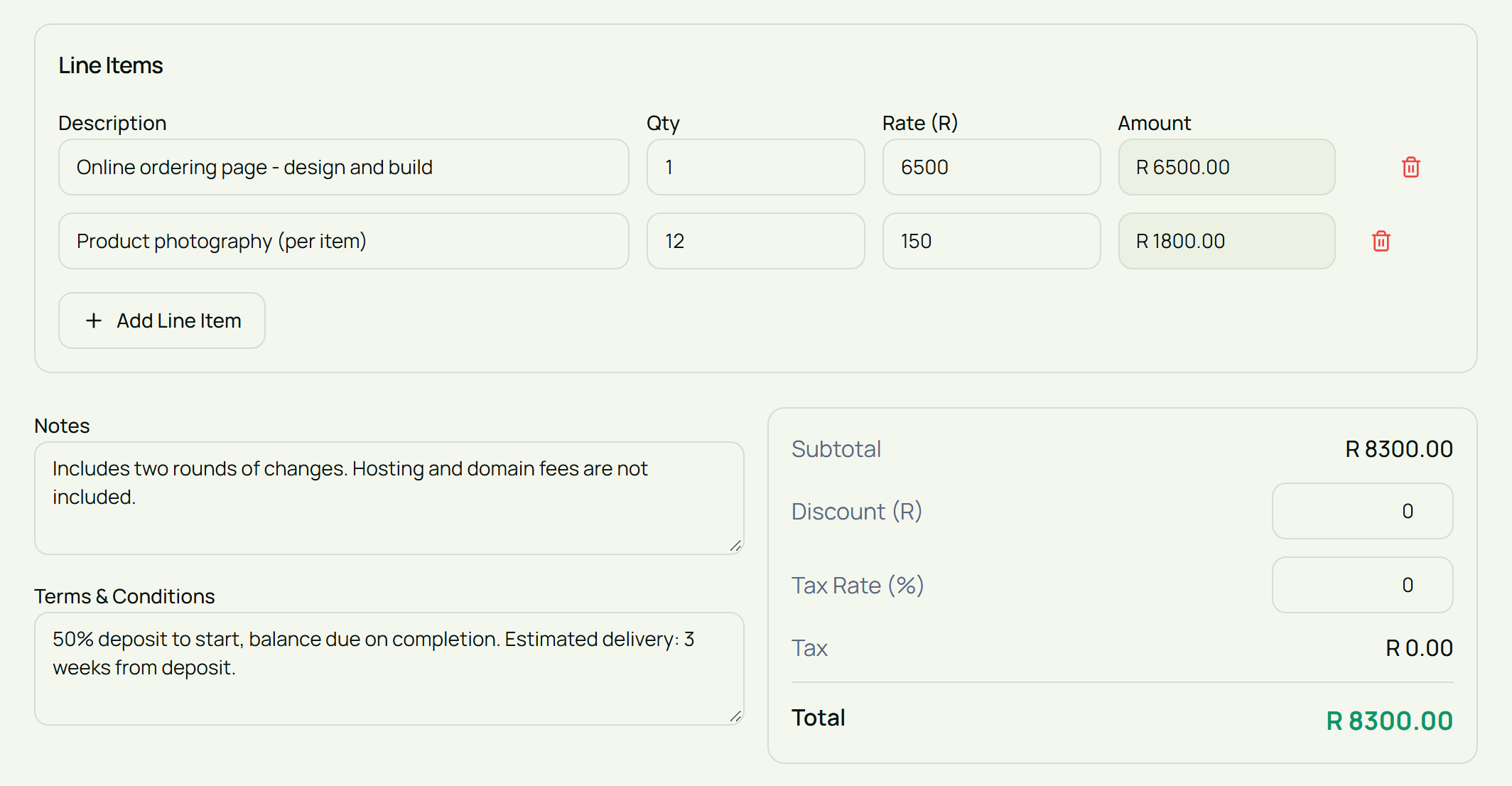
Under Line Items, enter a description, quantity (Qty) and price (Rate). Use Add Line Item for each additional product or service.
Write descriptions the client can understand. You know what "setup" means in your business. They may not.
| Instead of | Write something like |
|---|---|
| Design work | Two-page promotional flyer - design and print-ready PDF |
| Website updates | Update text and images on five existing website pages |
| Photography | Product photography - 12 items, two edited images per item |
| Call-out | On-site inspection and fault diagnosis, up to one hour |
You do not need to list every small task. Group related work into deliverables the client can recognise and approve.
Worked example: a promotional design quote
Lerato is preparing a quote for a local shop's new promotion. Instead of one line saying "Marketing design", she breaks the work down:
| Description | Qty | Rate | Amount |
|---|---|---|---|
| Two-page promotional flyer - design and print-ready PDF | 1 | R2,400 | R2,400 |
| Social media graphics adapted from the approved flyer | 3 | R350 | R1,050 |
| Additional image retouching | 2 | R225 | R450 |
| Subtotal | R3,900 |
For this example, the tax rate and discount are both set to zero, so the final total is R3,900. Use the tax treatment appropriate to your own business when preparing a real quote.
The client can now see what the price covers. If they want to remove the social media graphics, there is a clear item to discuss.
Step 5: Explain what is included and what is not
Line items explain the deliverables. Notes gives you room to explain their boundaries.
For Lerato's design quote, useful notes might read:
Includes two rounds of revisions to the flyer design. The client supplies final wording, logo files and product photographs before work begins. Printing, copywriting and paid advertising are excluded. Additional work will be quoted separately for approval.
This answers questions that the price table cannot answer on its own.
Adapt the wording to your work. A repair quote might specify which parts are included. A photography quote might explain the number of edited images. A website quote might identify who supplies the content.
Be specific about limits. "Revisions included" leaves the number open. "Two rounds of revisions included" gives the client something concrete to work with.
Step 6: Add payment and delivery terms
Use Terms & Conditions to explain how the job will proceed.
Cover the points that matter for this project:
- Payment timing: whether there is a deposit, a milestone payment or payment on completion.
- Starting conditions: what you need before you can begin.
- Delivery estimate: how long the work should take and what that estimate depends on.
- Changes: how you will agree on additional work or revised requirements.
For example:
A 50% deposit is required before work begins, with the balance due before release of the final files. The first design will be supplied within five working days of receiving the deposit and all required content. Delivery of final files depends on approval and feedback. Changes outside the agreed scope will be priced for approval before work continues.
On the R3,900 example, a 50% deposit would be R1,950. This is an example of a payment arrangement, not a rule for every business. Use terms you are prepared to deliver on and discuss them with the client.
If you include banking details, check the account information before sending the document.
Step 7: Check the pricing and preview the quote
Review Tax Rate (%) and Discount (R) rather than assuming the defaults are right for this job. The discount field is a rand amount, so entering 10 means R10, not 10%.
Then open Preview to see how the document will look to your client.
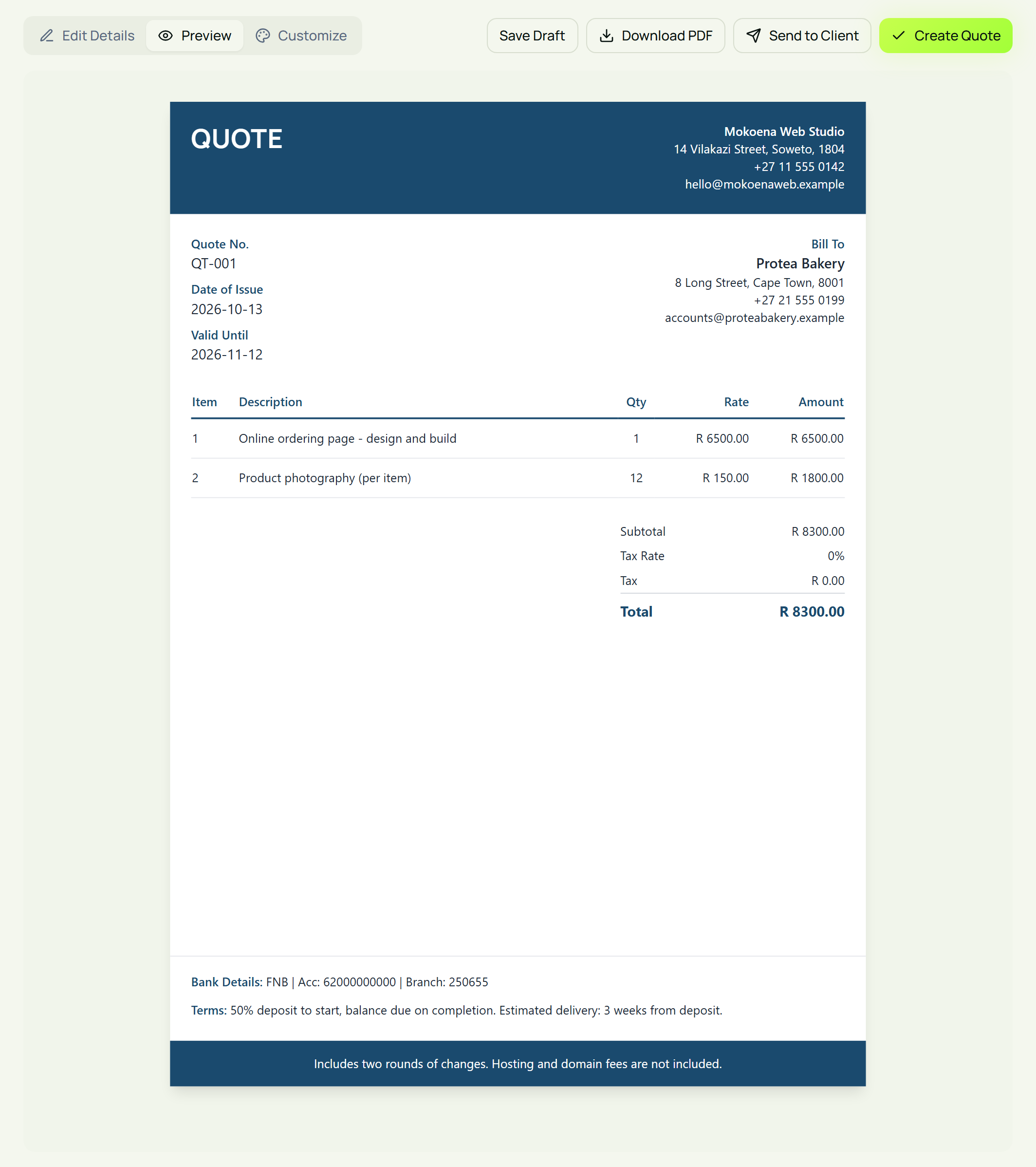
Work through this checklist:
| Check | What to look for |
|---|---|
| Business and client details | Correct names, spelling and contact information |
| Quote number and dates | A clear reference and a suitable validity period |
| Line items | Descriptions, quantities and rates match the proposed work |
| Total | Tax and discount settings are appropriate and the total is correct |
| Scope | Deliverables, limits and exclusions are clear |
| Terms | Payment timing and delivery expectations are understandable |
| Layout | Logo, descriptions and terms are readable |
Read it as someone who has not had your phone conversation. If the document only makes sense because of something you explained verbally, add that detail.
Step 8: Save, download and send
When you are happy with the quote, click Create Quote. It appears in your Quotes list with the status Pending.
If you still need to confirm a price or finish the scope, use Save Draft instead. Eazy-Biz saves draft quotes for 30 days.
Creating the quote saves it in the app. To share it, use the download icon in your Quotes list and send the PDF to the client by email or your usual messaging channel.
Here is a short message you can adapt:
Hi [Client Name],
Please find attached quote [number] for [project].
The total is [amount], and the quote is valid until [date]. It includes [brief summary of the work].
Please reply to confirm whether you would like to proceed, or let me know if anything needs adjusting.
Thanks, [Your Name]
Keep a copy of the client's response with your project records. If they request changes, agree on the revised scope and price before treating the job as ready to start.
Keep the quote status up to date
After sending, use your Quotes list to keep track of the outcome:
- Pending: you are waiting for a decision.
- Accepted: the client has approved the quote.
- Declined: the client has decided not to proceed.
- Expired: the validity period has passed without acceptance.
Set aside time to follow up pending quotes during your weekly admin routine. Ask whether the client has questions or needs a change to the scope.
When the client accepts, follow our quote-to-invoice workflow for the next steps, including reviewing the invoice before sending it.
Frequently asked questions
What should a professional quote include?
Include your business details, the client's details, a quote number, the date, a valid-until date, clear descriptions, quantities, prices and the final total. Add the scope, exclusions, payment terms and delivery expectations relevant to the job.
Do I need a logo to create a quote?
No. A logo helps make the document recognisable, but clear business details, readable pricing and a specific scope matter more. You can upload a logo in the quote editor when you have one ready.
Can I save a quote before it is finished?
Yes. Use Save Draft in the editor. Eazy-Biz saves draft quotes for 30 days, so you can return to finish the details before creating the final quote.
Does Eazy-Biz send the quote when I click Create Quote?
Create Quote saves the document to your Quotes list. Download the PDF from the list and send it to the client through email or your preferred messaging channel.
Can I use the same template for quotes and invoices?
Yes. Eazy-Biz uses the same template system for both, so you can keep your documents consistent. The templates available depend on your plan.
What if the client asks for more work after receiving the quote?
Clarify what has changed, work out the revised price and timing, and send an updated quote or a separate quote for the additional work. Get the client's approval before starting the extra work.
Send a quote your client can understand
A professional quote makes the decision easier. The client can see what they are getting, what it costs and what happens next.
Eazy-Biz gives you the template, line items, preview and PDF download in one place. Add clear scope and realistic terms, and you have a document you can confidently send.
Get started with Eazy-Biz and create your first professional quote.
This article is general information for South African business owners and is not tax, legal, or financial advice. Rules and thresholds change, so confirm your position with SARS or a registered tax practitioner before acting on it.