From Quote to Invoice: A Simple Workflow for Small Businesses
What to include in a quote, and how to turn an accepted quote into an invoice in Eazy-Biz without retyping everything.
A client asks what the job will cost. You send a price. They say yes. Then you sit down and type the same details all over again to invoice them.
That second round of typing is where mistakes creep in. A price changes by accident, a line goes missing, or the invoice no longer matches what the client agreed to.
This guide covers what belongs in a quote, then walks you through creating one in Eazy-Biz and turning it into an invoice once your client accepts.
Quote or invoice: what is the difference?
A quote is an offer. It tells the client what you will do, what it will cost and how long the price stands. Nothing is owed yet.
An invoice is a request for payment. You send it once the client has agreed and the work, or an agreed part of it, is due to be paid.
The two documents should match. If the invoice shows the same items and prices the client already approved, there is nothing to query and nothing to delay payment.
What to include in a quote
A good quote answers the client's questions before they ask them:
- Your business details. Name, address, phone and email.
- The client's details. The person or business the quote is for.
- A quote number and date. So both of you can refer to it later.
- A valid-until date. Your costs change, so your price should not stand forever.
- A clear scope. Each product or service on its own line, with a quantity and price.
- What is not included. Naming the exclusions prevents arguments later.
- The total, with tax shown if it applies.
- Your terms. Deposit, payment timing and an estimated delivery date.
1. Open Quotes and start a new quote
Sign in to Eazy-Biz and choose Quotes in the menu on the left. Click New Quote at the top right. If you have no quotes yet, use the Create Quote button in the middle of the page.
Then choose a template. Quotes use the same eight templates as invoices, so your quote and your invoice can look like a matching pair. The Free plan includes two templates, Standard includes five and Pro includes all eight.
2. Check the quote number and valid-until date
Eazy-Biz fills these in for you:
- Quote Number. Your first quote is QT-001, and each new quote continues from your last number.
- Date. Today's date.
- Valid Until. Set to 30 days from today.
Shorten the valid-until date if your prices depend on supplier costs that move quickly. A quote that is open for 14 days gives the client a reason to decide.
3. Add your details and your client's details
Add your logo with Upload Logo, fill in Your Business Details, then enter the client's name, email, phone and address under Bill To.
Take care here. Everything you enter on the quote is carried over to the invoice later, so a spelling mistake now becomes a spelling mistake on the invoice.
4. List the work and set your terms
Under Line Items, add a description, quantity (Qty) and price (Rate) for each item. Click Add Line Item for each extra line.
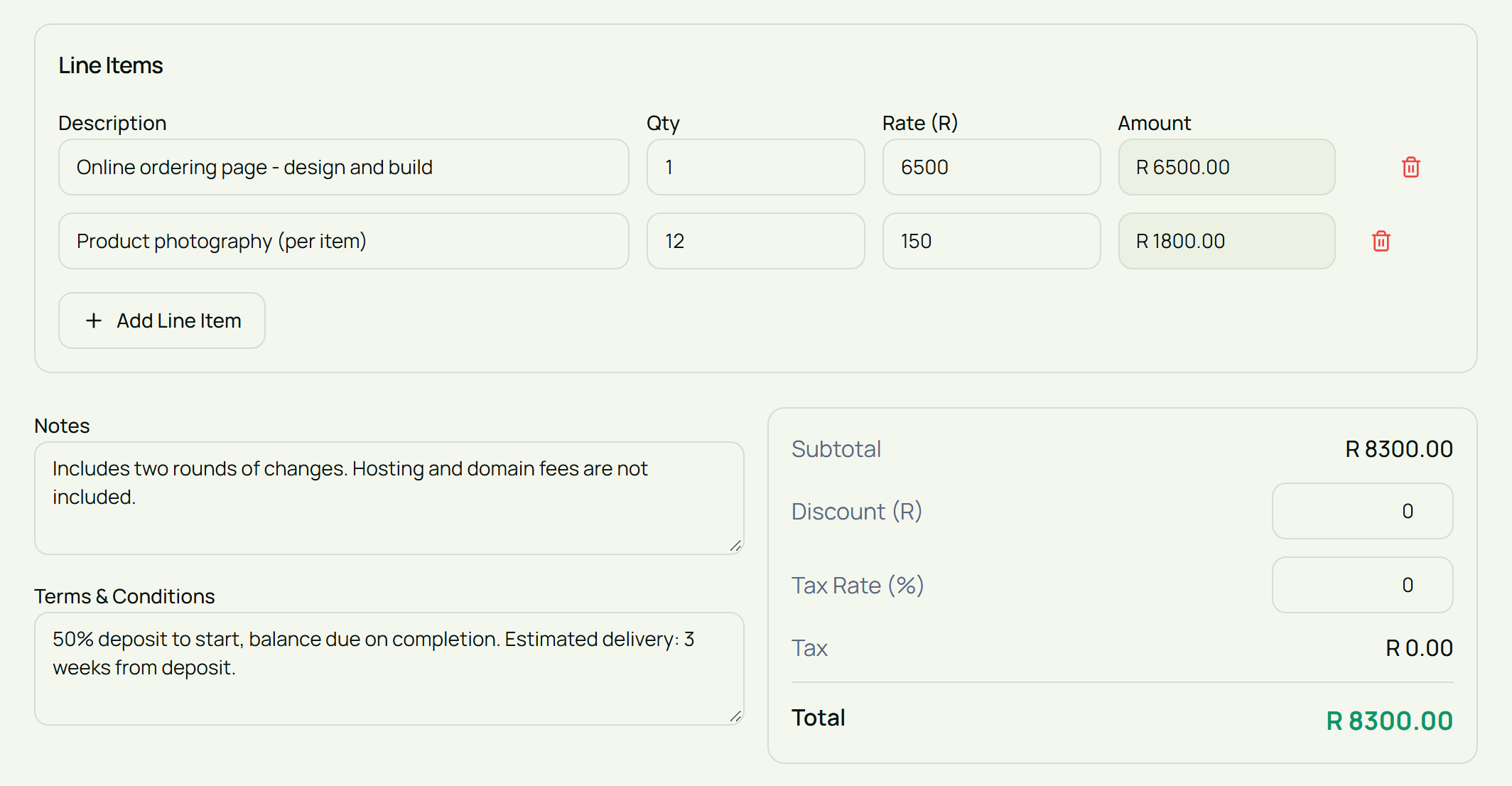
Break the job into parts the client can understand. "Website work" invites questions. "Online ordering page - design and build" tells the client exactly what they are paying for.
Here is the example used in this guide:
| Description | Qty | Rate | Amount |
|---|---|---|---|
| Online ordering page - design and build | 1 | R6,500 | R6,500 |
| Product photography (per item) | 12 | R150 | R1,800 |
| Total | R8,300 |
Then fill in the rest:
- Tax Rate (%). This starts at 15. If you are not registered for VAT, change it to 0. See our guide to the VAT registration threshold if you are unsure.
- Discount (R). A rand amount, if you are offering one.
- Notes. A good place for what is and is not included, such as "Includes two rounds of changes. Hosting and domain fees are not included."
- Terms & Conditions. Your deposit, payment timing and estimated delivery.
Payment information is optional on a quote. Add your bank details now if you want a deposit before you start.
5. Preview, create and send the quote
Click the Preview tab to see the quote the way your client will.
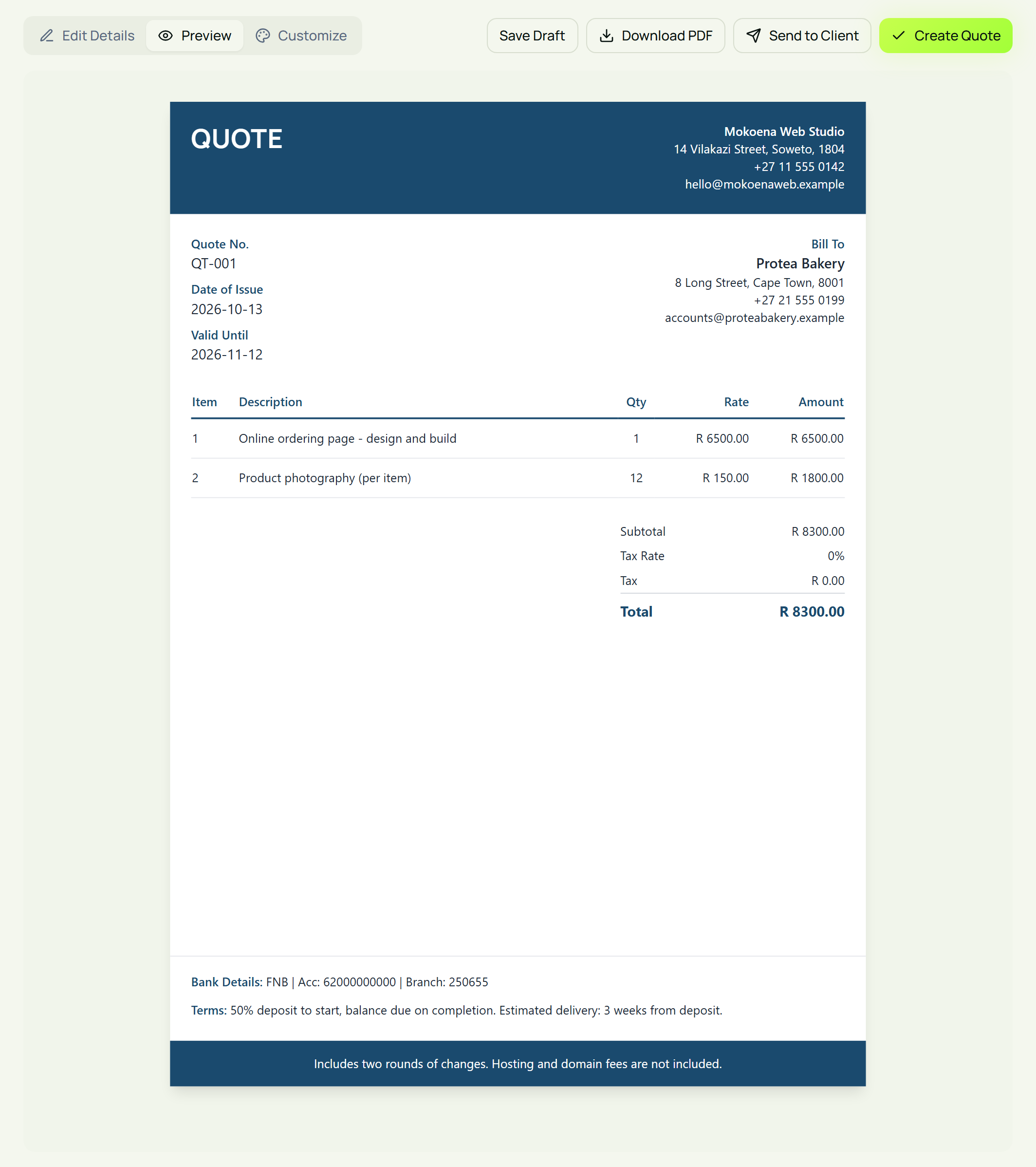
Check the names, the prices, the total and the valid-until date. When you are happy, click Create Quote. It is saved to your Quotes list with the status Pending. If you are not finished, Save Draft keeps it for 30 days.
To send it, click the download icon next to the quote in your list, then attach the PDF to an email or share it on the channel you and your client use. Keep the message short:
Hi [Client Name],
Please find attached quote [number] for [project].
The total is [amount] and the quote is valid until [date]. Let me know if you would like to go ahead or if you have any questions.
Thank you, [Your Name]
6. Mark the quote as accepted
When the client says yes, go to your Quotes list, click the status next to the quote and choose Accepted.
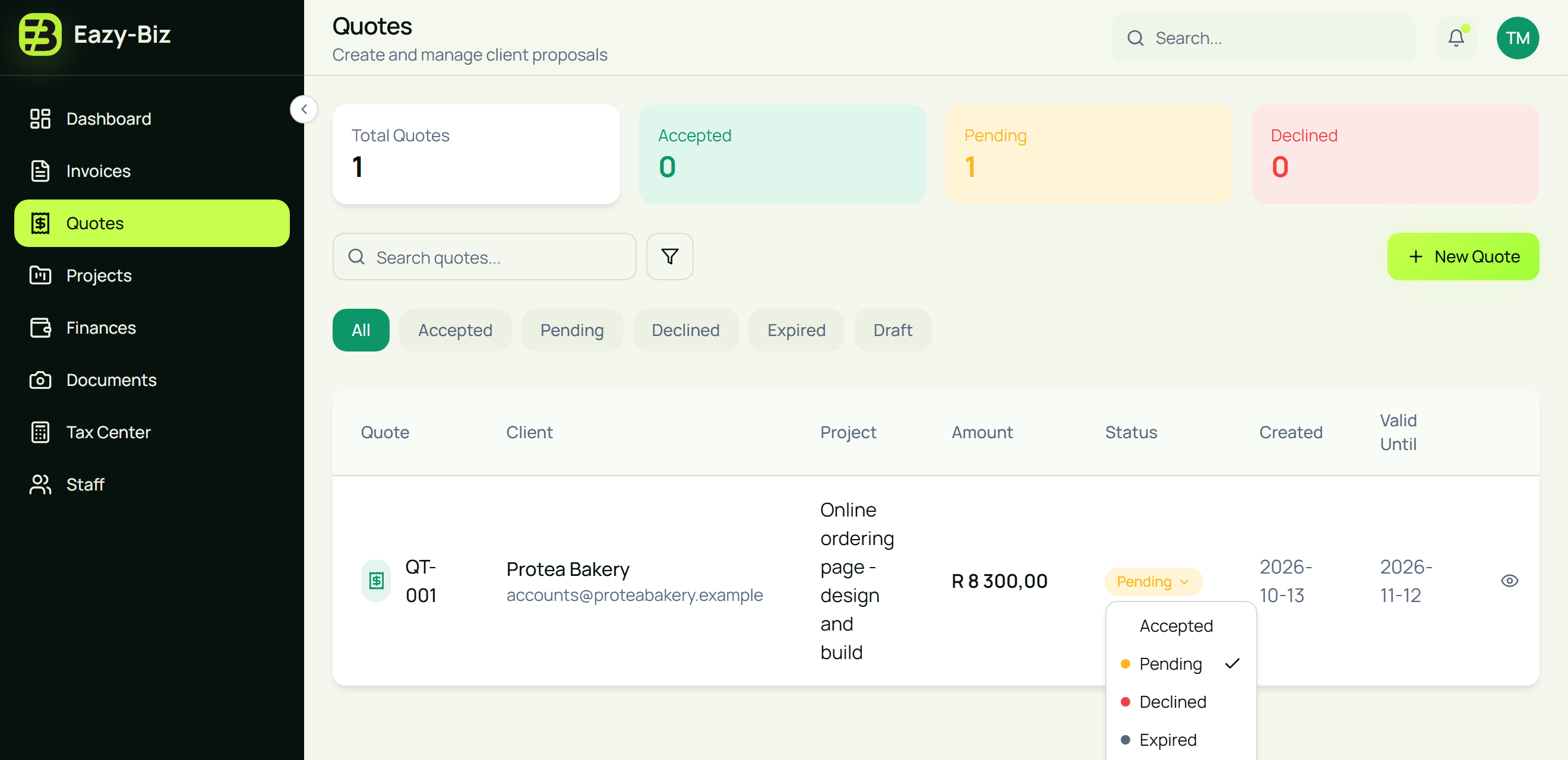
This is the step that saves you the retyping. On the Standard and Pro plans, Eazy-Biz creates a draft invoice from the accepted quote. Your business details, the client's details, every line item, the discount, the tax rate, the totals, your notes, terms and bank details, and the template you chose are all copied across.
If the client says no, choose Declined. If the valid-until date passes with no answer, choose Expired. The cards at the top of the page count your accepted, pending and declined quotes, so you can see how many you are winning.
Tip: Choose Accepted once. Each time a quote is set to Accepted, a new draft invoice is created.
7. Review the draft invoice and finalise it
Go to Invoices. The new invoice is in your list with the status Draft. Click it to open it.
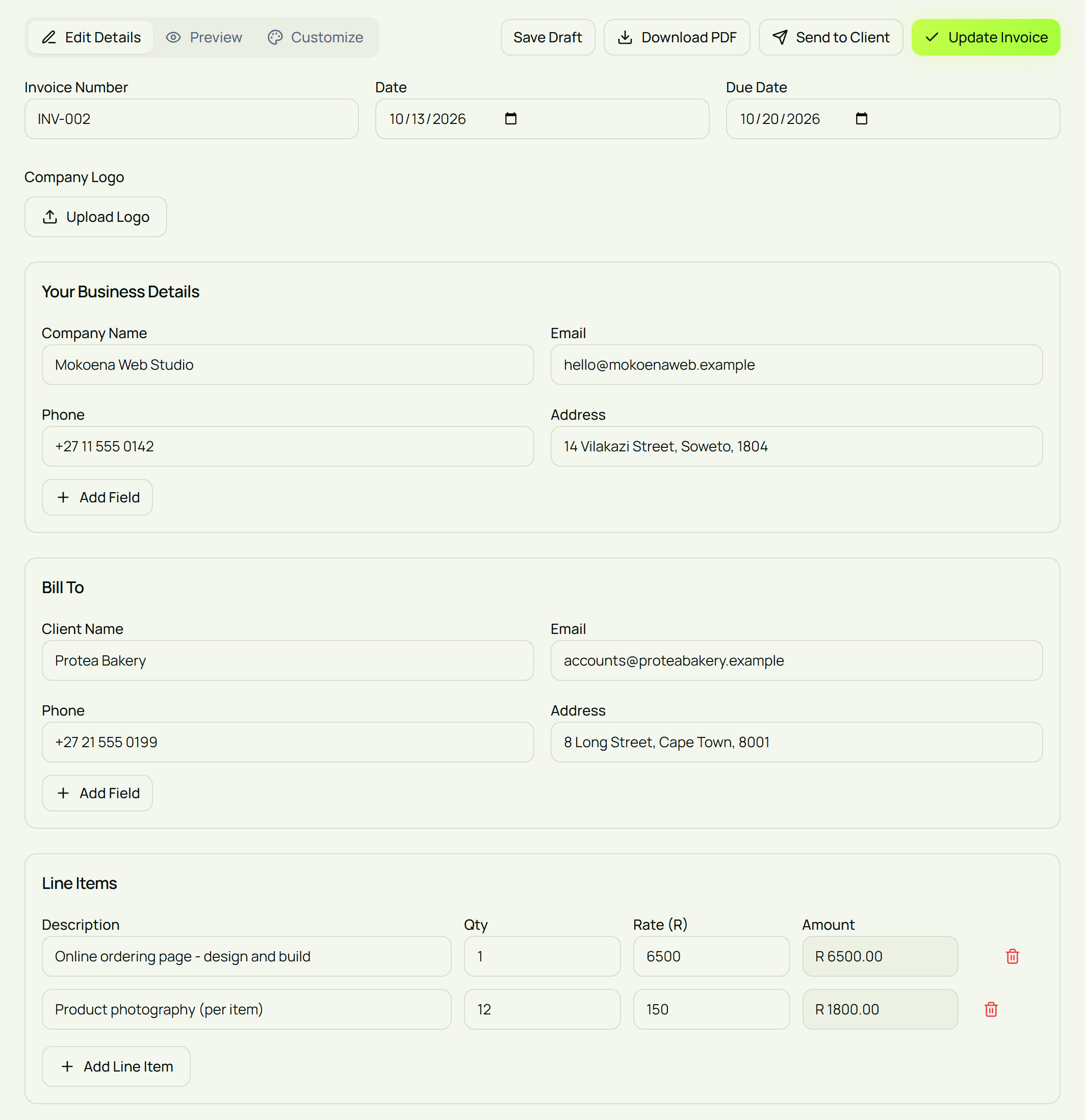
The details are already filled in. A few things still need your attention before it goes out:
- Invoice Number. Change it to the next number in your own invoice sequence. Invoice numbers should be unique and run in order.
- Due Date. It is set to 30 days from today. Change it to match the terms you agreed.
- Terms & Conditions. The quote's wording is carried over. Reword anything that only made sense on a quote, such as a deposit that has since been paid.
- Line items. If the scope changed after the quote, update the lines so the invoice reflects what you delivered.
Then click Update Invoice. The invoice moves from Draft to Pending.
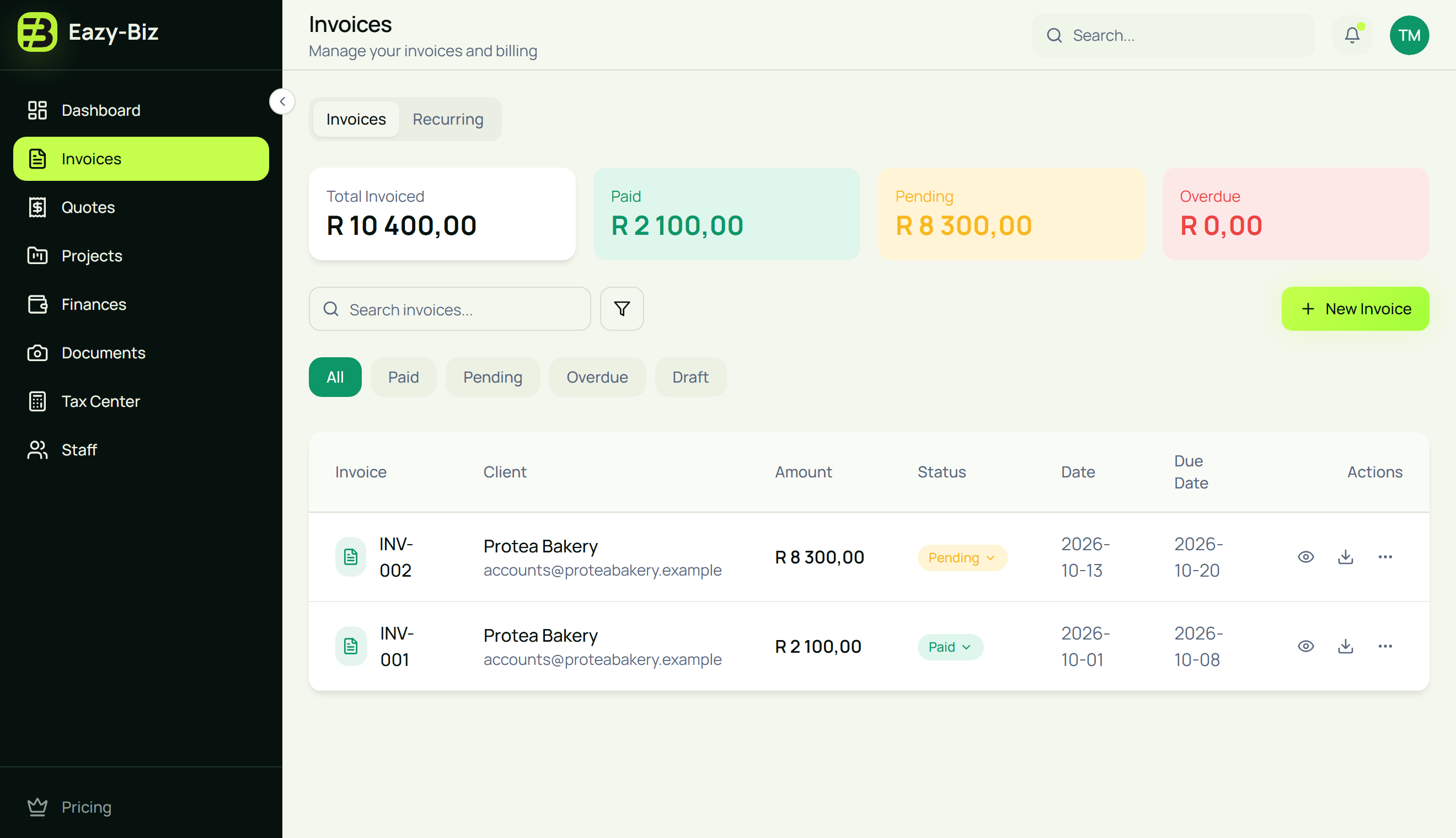
Download the PDF from the list and send it to your client. Our guide to creating and sending your first invoice covers that part step by step.
Tips for a smoother quote-to-invoice workflow
- Quote before you start. Agreeing on price and scope in writing protects both of you.
- Always set a valid-until date. It protects you from honouring an old price after your costs have gone up.
- Get acceptance in writing. An email or message saying "approved" is enough. Keep it.
- Keep the invoice true to the quote. If the work grew, explain the extra lines to your client before the invoice arrives.
- Follow up on pending quotes. Filter your list by Pending once a week and check in with anyone who has gone quiet.
Frequently asked questions
Can I turn a quote into an invoice in Eazy-Biz?
Yes. On the Standard and Pro plans, changing a quote's status to Accepted creates a draft invoice with the quote's details filled in. On the Free plan you can create quotes and invoices separately.
Does the quote stay on record after it becomes an invoice?
Yes. The quote stays in your Quotes list with the status Accepted, and the invoice is a separate document in your Invoices list.
Can I change the invoice after it is created from a quote?
Yes. The invoice starts as a draft, so you can edit the number, dates, line items and terms before you finalise it.
How long should a quote be valid for?
Eazy-Biz sets 30 days by default, and you can change it. Many small businesses use 14 or 30 days. Use a shorter period if your material or supplier costs change often.
Should a quote have bank details?
It's optional. A quote is an offer, not a request for payment, so your banking details mainly belong on the invoice. If you ask for a deposit, include them on the quote so the client can pay it straight away. In Eazy-Biz, the banking details you save under Settings, then Business, are filled in on new quotes and invoices automatically.
Is a quote a tax invoice?
No. A quote is an offer, and your client cannot claim VAT from one. If you are a VAT vendor, see what must be on a valid tax invoice.
How many quotes can I create?
The Free plan includes 15 quotes a month. Standard includes 100 a month and Pro is unlimited.
Start quoting with Eazy-Biz
A clear quote wins the job. An invoice that matches it gets you paid without a back-and-forth.
Get started with Eazy-Biz and send your next quote today.
This article is general information for South African business owners and is not tax, legal, or financial advice. Rules and thresholds change, so confirm your position with SARS or a registered tax practitioner before acting on it.