How to Create and Send Your First Invoice with Eazy-Biz
A step-by-step guide to creating your first invoice in Eazy-Biz, downloading it as a PDF and sending it to your client.
You have finished the work. Now it is time to invoice your client.
For freelancers and small business owners, an invoice has a simple job. It shows what you delivered, how much the client owes and when payment is due.
This guide walks you through creating your first invoice in Eazy-Biz, from a blank form to a PDF in your client's inbox. It takes a few minutes.
What you need before you start
Gather these details first:
- Your business name, address, phone number and email.
- Your client's name or business name, and their address and email.
- A description of each product or service you supplied.
- The quantity and price of each item.
- Your payment terms and bank details.
- Your logo, if you have one.
Having this ready makes the process quicker and cuts down on mistakes.
1. Open Invoices and start a new invoice
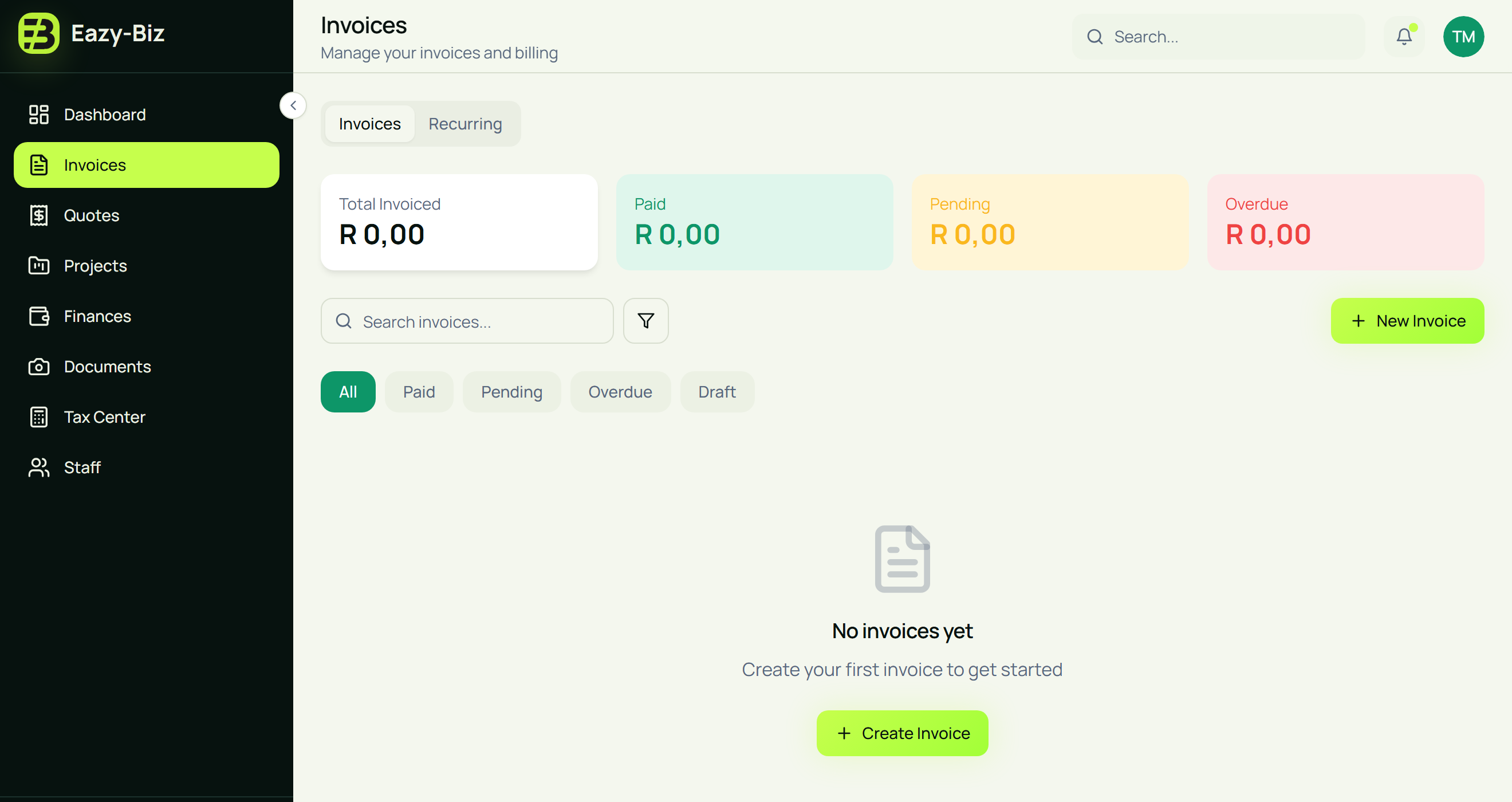
Sign in and choose Invoices in the menu on the left. If this is your first one, you will see an empty list with a Create Invoice button. Once you have invoices, use New Invoice at the top right.
2. Choose a template
The first thing you see is Choose a Template. Eazy-Biz has eight invoice templates. Click one to select it.
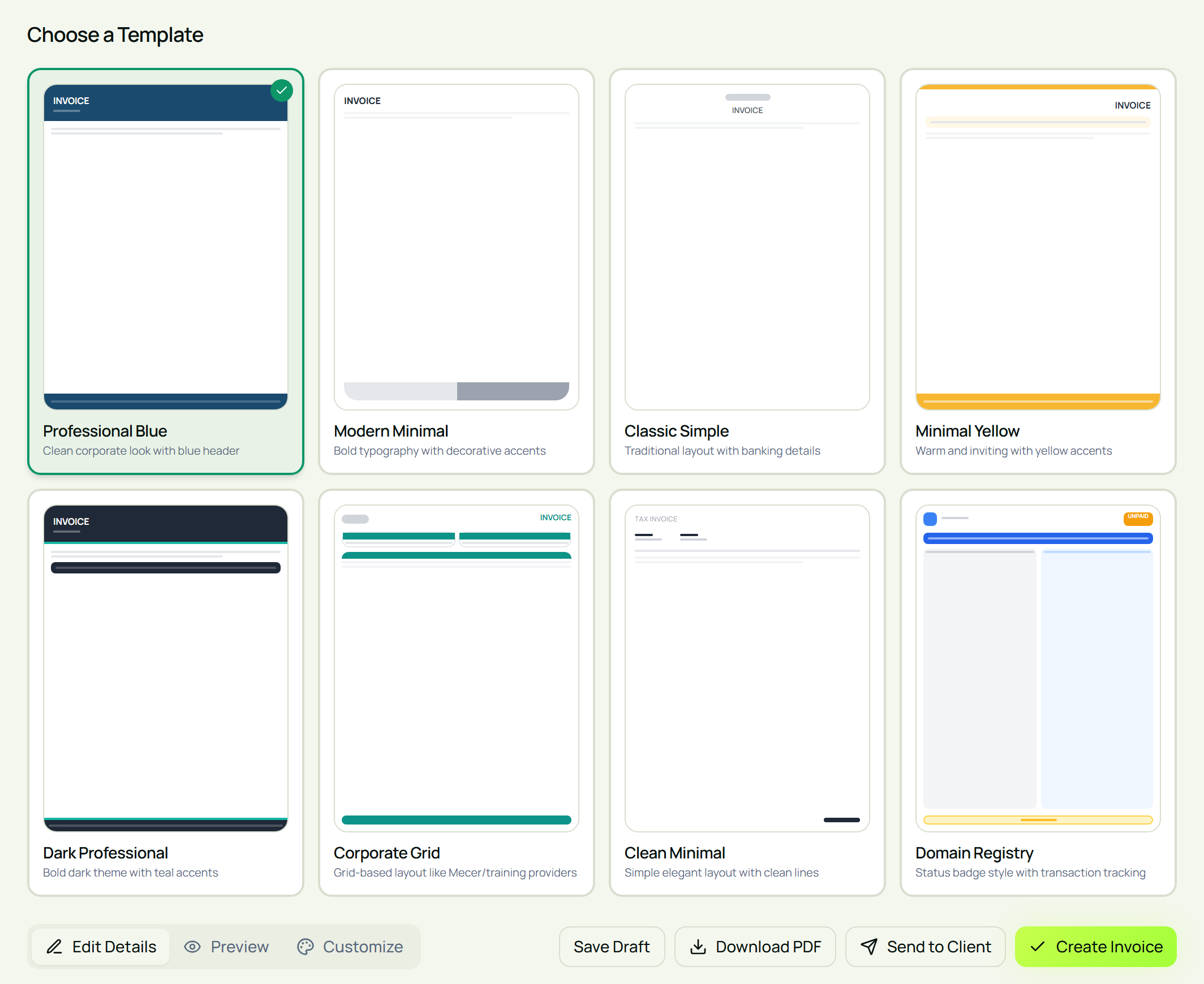
How many you can use depends on your plan:
| Plan | Templates you can use |
|---|---|
| Free | 2 (Professional Blue and Modern Minimal) |
| Standard | 5 |
| Pro | All 8, plus custom template colours |
On the Free plan the other templates show a lock. You can still preview them, but you need to upgrade to create an invoice with one.
Tip: Pick one template and stick with it. Clients recognise your invoices faster when they always look the same.
3. Check the invoice number and dates
Eazy-Biz fills in three things for you:
- Invoice Number. Your first invoice is INV-001, and each new invoice continues from your last number. You can type your own if you already use a numbering system.
- Date. Today's date.
- Due Date. Set to 14 days from today.
Change the due date to match what you agreed with your client. If you agreed on seven days, set seven days. A clear due date is easier to follow than "please pay soon".
4. Add your business details and logo
Click Upload Logo to add your logo, then fill in Your Business Details: company name, email, phone and address.
Use the name your customers know you by, and check the contact details. Your client should be able to see who sent the invoice and how to reach you with a question.
You can also save your business and banking details under Settings, in the Business section, so they are in one place. Either way, read through this section on every invoice before you send it.
5. Add your client under Bill To
Under Bill To, enter the client's name, email, phone and address.
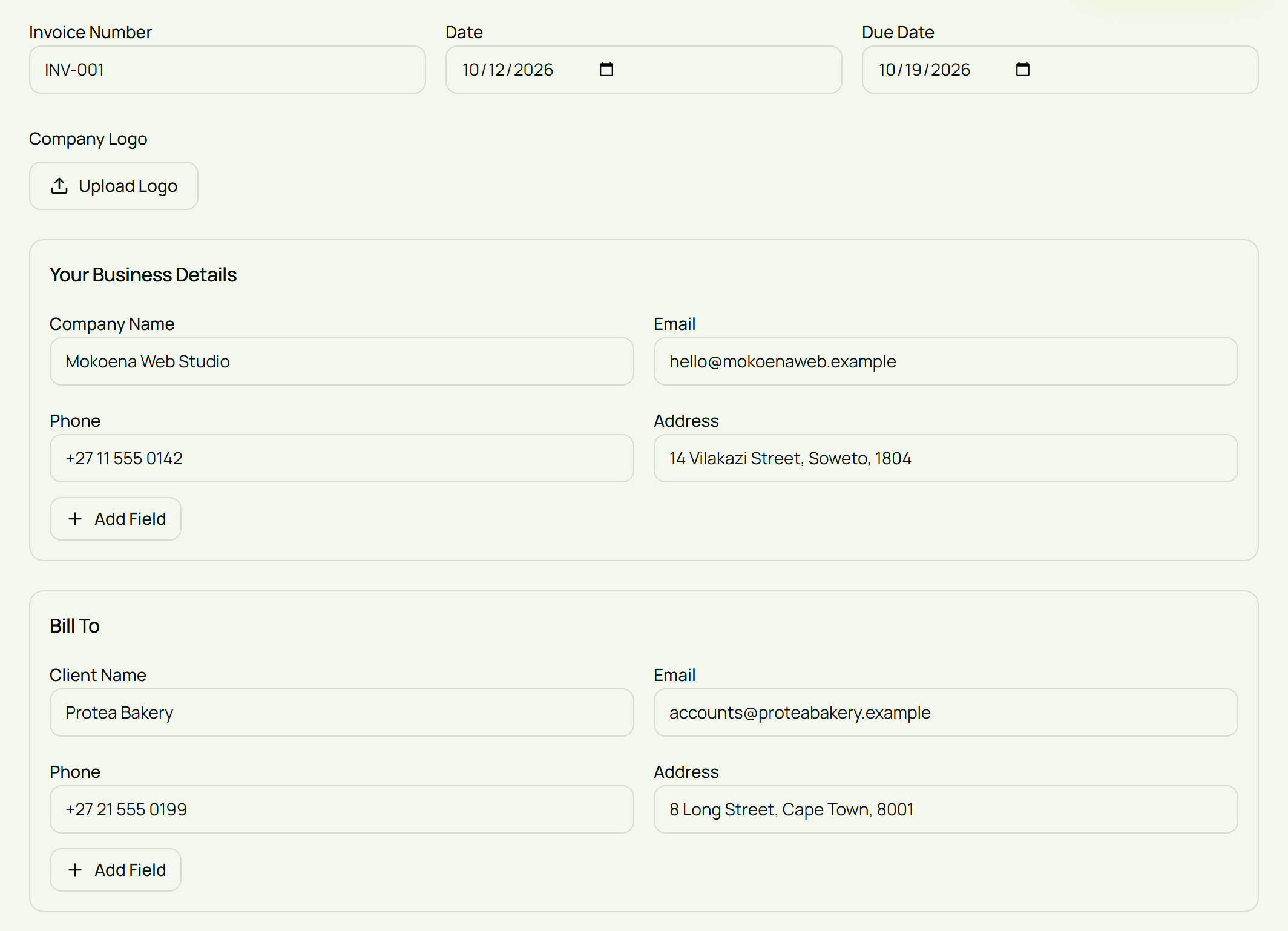
Check the spelling of the name and the billing address. If your customer is a business, ask which details their accounts team needs.
Tip: Ask whether the client needs a purchase order number or project reference. If they do, add it to the Notes box so it prints on the invoice.
6. List your products or services
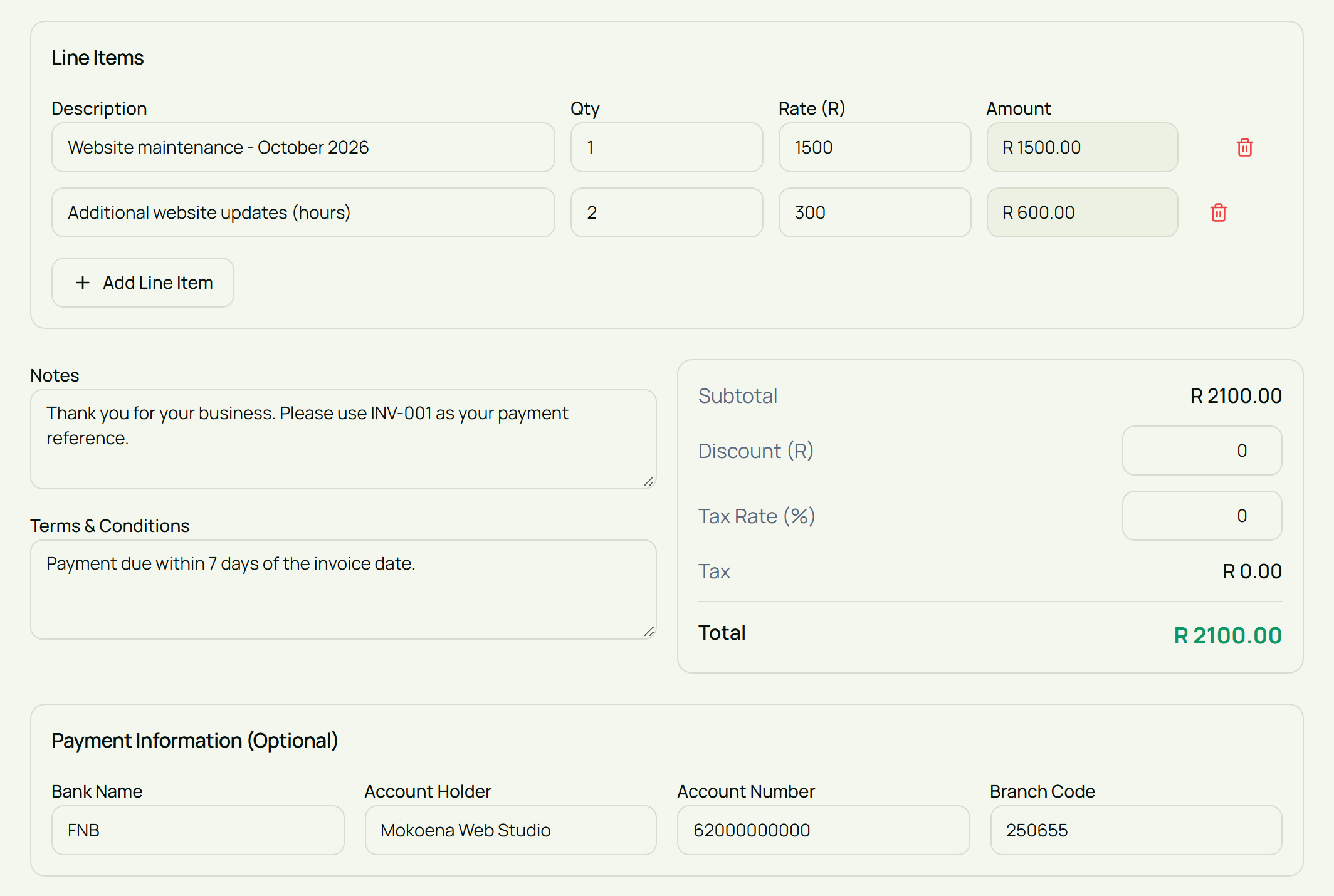
Under Line Items, add a description, quantity (Qty) and price (Rate) for the first item. Eazy-Biz works out the amount. Click Add Line Item for each extra item.
Avoid descriptions that are too broad. "Services rendered" tells the customer very little. "Website maintenance - October 2026" makes the charge easy to understand.
Here is the example used in this guide:
| Description | Qty | Rate | Amount |
|---|---|---|---|
| Website maintenance - October 2026 | 1 | R1,500 | R1,500 |
| Additional website updates (hours) | 2 | R300 | R600 |
| Subtotal | R2,100 |
7. Set the tax rate, discount and payment details
Below the line items you will find the totals and your payment information.
Work through each part:
- Tax Rate (%). This starts at 15, the standard VAT rate. If you are not registered for VAT, change it to 0. Only registered VAT vendors may charge VAT.
- Discount (R). Enter a rand amount if you agreed on a discount. It comes off before tax is worked out.
- Notes. A thank-you message, a payment reference or a purchase order number.
- Terms & Conditions. Your payment terms, such as "Payment due within 7 days of the invoice date".
- Payment Information. Your bank name, account holder, account number and branch code.
Check the account number twice. A wrong digit can delay payment and create extra admin.
If you are a VAT vendor, your VAT number must appear on the invoice. Add it to your business address line so it prints with your details. Our guide to valid tax invoice requirements in South Africa covers everything else SARS expects, and the VAT registration threshold guide explains when you need to register.
8. Preview the invoice and create it
Click the Preview tab to see the invoice the way your client will.
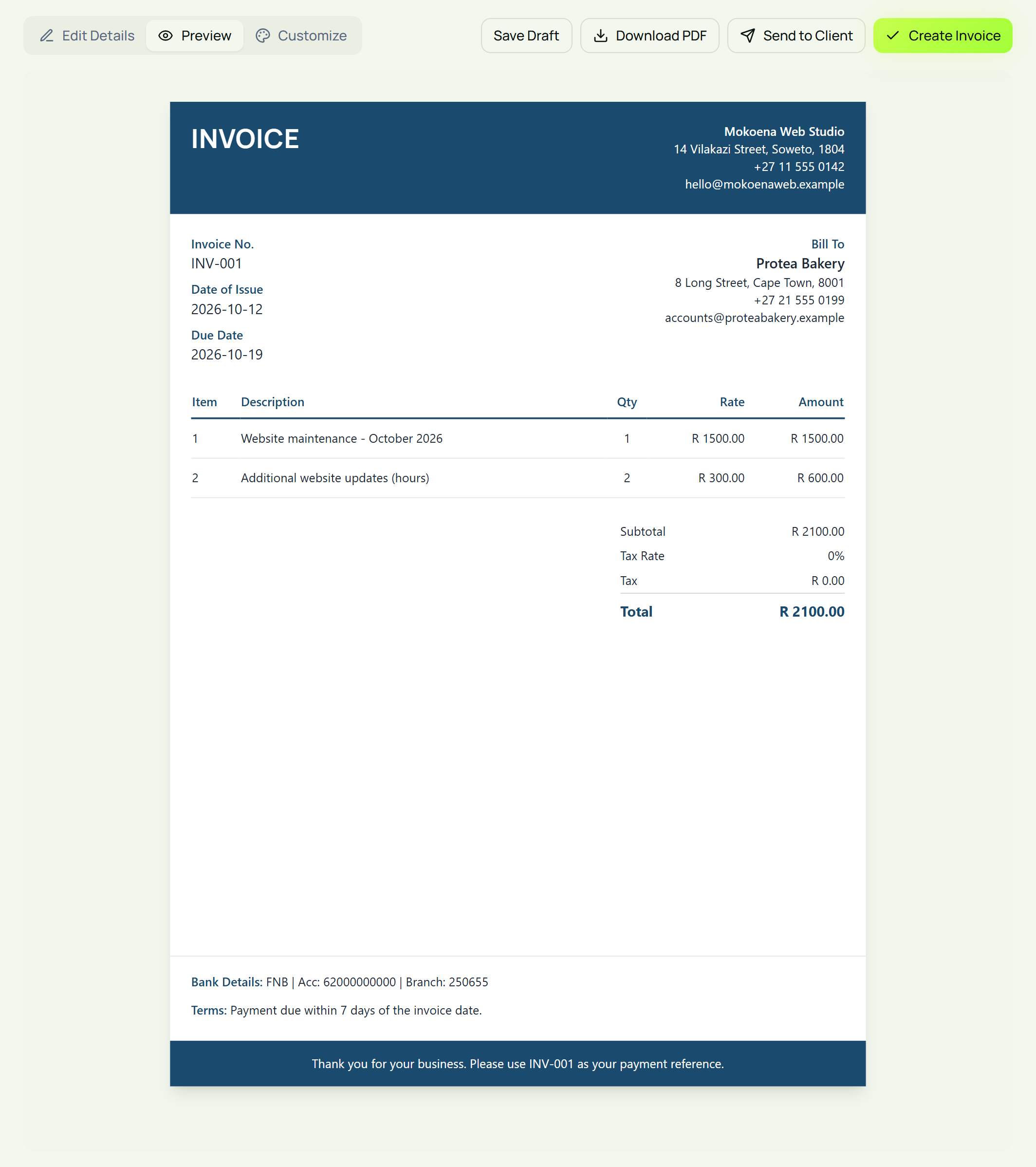
Read it slowly, the way your client's accounts person would:
- Are the names and addresses right?
- Do the quantities, prices and total add up to what you agreed?
- Is the due date correct?
- Are your bank details and payment reference there?
If something is wrong, go back to Edit Details and fix it.
When you are happy, click Create Invoice. The invoice is saved to your Invoices list. Not ready yet? Click Save Draft and come back later. Drafts are kept for 30 days.
9. Download the PDF
In your Invoices list, click the download icon next to the invoice. The PDF saves to your device as Invoice_INV-001.pdf, using your invoice number.
Open the file and check it one more time before it goes out. If you would like the client's name in the file name, rename it to something like Invoice-INV-001-Protea-Bakery.pdf.
On the Free plan, PDFs carry an Eazy-Biz watermark. The Standard and Pro plans remove it.
10. Send the invoice to your client
Attach the PDF to an email, or share it through the channel you agreed with your customer, such as WhatsApp.
Keep the message short. Include the invoice number, the amount and the due date:
Hi [Client Name],
Please find attached invoice [number] for [service or project].
The total is [amount], with payment due on [date]. Payment details are on the invoice.
Please let me know if you have any questions.
Thank you, [Your Name]
For business customers, send it to the right accounts contact and include any reference they asked for.
After sending: keep track of payment
A new invoice starts with the status Draft. Once you have sent it, click the status in your Invoices list and change it to Pending. When the money arrives, change it to Paid. If the due date passes, mark it Overdue so you know to follow up.
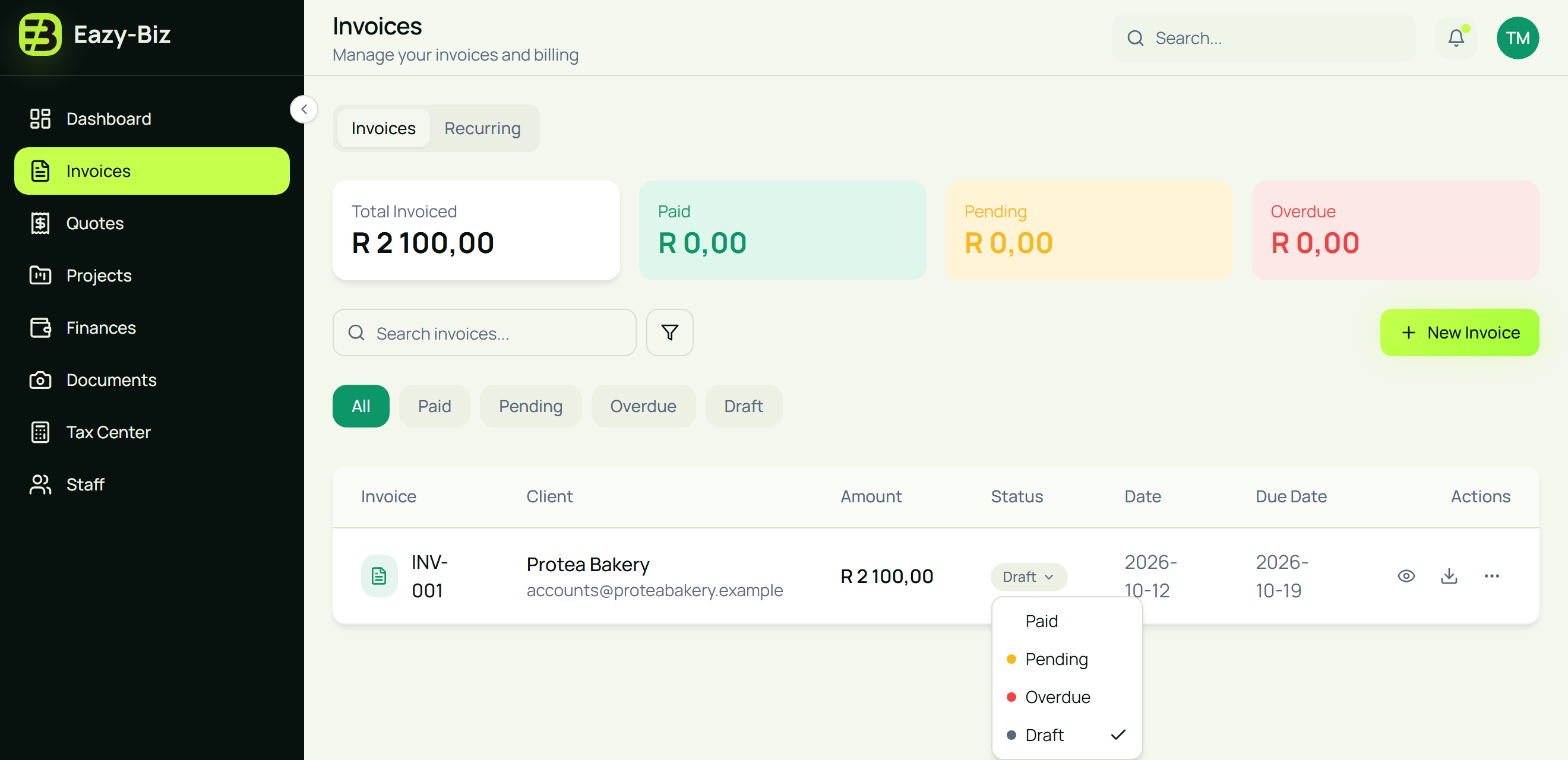
The cards at the top of the page add up what is paid, pending and overdue, so you can see what customers still owe you at a glance. You can also filter the list by status or search by client name or invoice number.
Set aside time each week to review the list. Keeping statuses up to date helps you avoid chasing a client who has already paid.
Frequently asked questions
How many invoices can I create for free?
The Free plan includes 15 invoices and 15 quotes a month, with two templates. Standard includes 100 a month and Pro is unlimited.
Can I download my invoice as a PDF?
Yes. PDF downloads are included on every plan. Free plan PDFs carry a watermark, and paid plans remove it.
Can I edit an invoice after creating it?
Yes. In your Invoices list, open the menu at the end of the row and choose Edit. If the invoice has already gone to your client and the amount was wrong, it is better practice to issue a credit note and a new invoice than to change the original.
Do I have to charge VAT on my invoice?
Only if you are a registered VAT vendor. If you are not, set the tax rate to 0 and do not call the document a tax invoice.
Can I bill the same client every month?
Yes. The Recurring tab on the Invoices page lets you set up a schedule for clients you bill regularly.
How can I make my invoice look professional?
Add your logo, use a clear template and write specific descriptions. Make the total, the due date and the payment details easy to find.
Create your first invoice with Eazy-Biz
A clear invoice helps your customer understand the charge and pay you without a string of follow-up questions.
Get started with Eazy-Biz and create your first invoice today.
This article is general information for South African business owners and is not tax, legal, or financial advice. Rules and thresholds change, so confirm your position with SARS or a registered tax practitioner before acting on it.