How to Keep Track of Unpaid Invoices Without a Spreadsheet
A simple weekly routine for tracking unpaid and overdue invoices, checking payments and sending polite reminders, using Eazy-Biz instead of a spreadsheet.
You sent the invoice and carried on with your work. Two weeks later, you are scrolling through emails, checking your bank account and trying to remember whether the client paid.
Sound familiar?
For freelancers and small business owners, creating invoices is only half the job. You also need to know which invoices are unpaid, when payment is due and who needs a reminder.
A simple routine keeps you organised without a separate spreadsheet. Here is how to build one around Eazy-Biz.
Why unpaid invoices become hard to manage
With one or two clients, remembering payments feels manageable. As your business grows, the details pile up.
One client pays a deposit. Another pays late. A third needs the invoice sent to a different email address.
When that information is spread across emails, messages and handwritten notes, it becomes easy to:
- Forget to follow up on a late payment.
- Remind a customer who has already paid.
- Overlook a remaining balance.
- Lose track of how much clients owe you in total.
The fix is to keep every invoice in one place, give each one a status you trust, and review them on a fixed day.
How to show only unpaid invoices in a spreadsheet
If your invoices are in Excel or Google Sheets and you, or a client, need to see only the unpaid ones, use the Filter feature on your status column.
A filter hides the rows that don't match, such as everything marked Paid, without deleting or moving anything. Your full list stays intact, and you can clear the filter to see every invoice again. That makes it the right tool for the job, rather than sorting (which only reorders rows) or copying unpaid rows into a new sheet (which goes out of date).
In Excel:
- Make sure your list has a heading row, with a column such as Status that says Paid, Unpaid or Overdue.
- Click any cell in the list, then choose Data, then Filter.
- Click the arrow in the Status heading, untick Paid, and click OK.
In Google Sheets:
- Click any cell in the list, then choose Data, then Create a filter.
- Click the filter icon in the Status heading and untick Paid.
The filter only works if every row has a status and someone keeps it up to date. That is where spreadsheets usually break down: a payment arrives, nobody changes "Unpaid" to "Paid", and the filtered list starts lying. The rest of this guide shows a routine that avoids that, using a list built for invoices.
1. Keep every invoice in one place
When you create your invoices in Eazy-Biz, they all land in one list. Each row shows the invoice number, the client, the amount, the status, the invoice date and the due date.
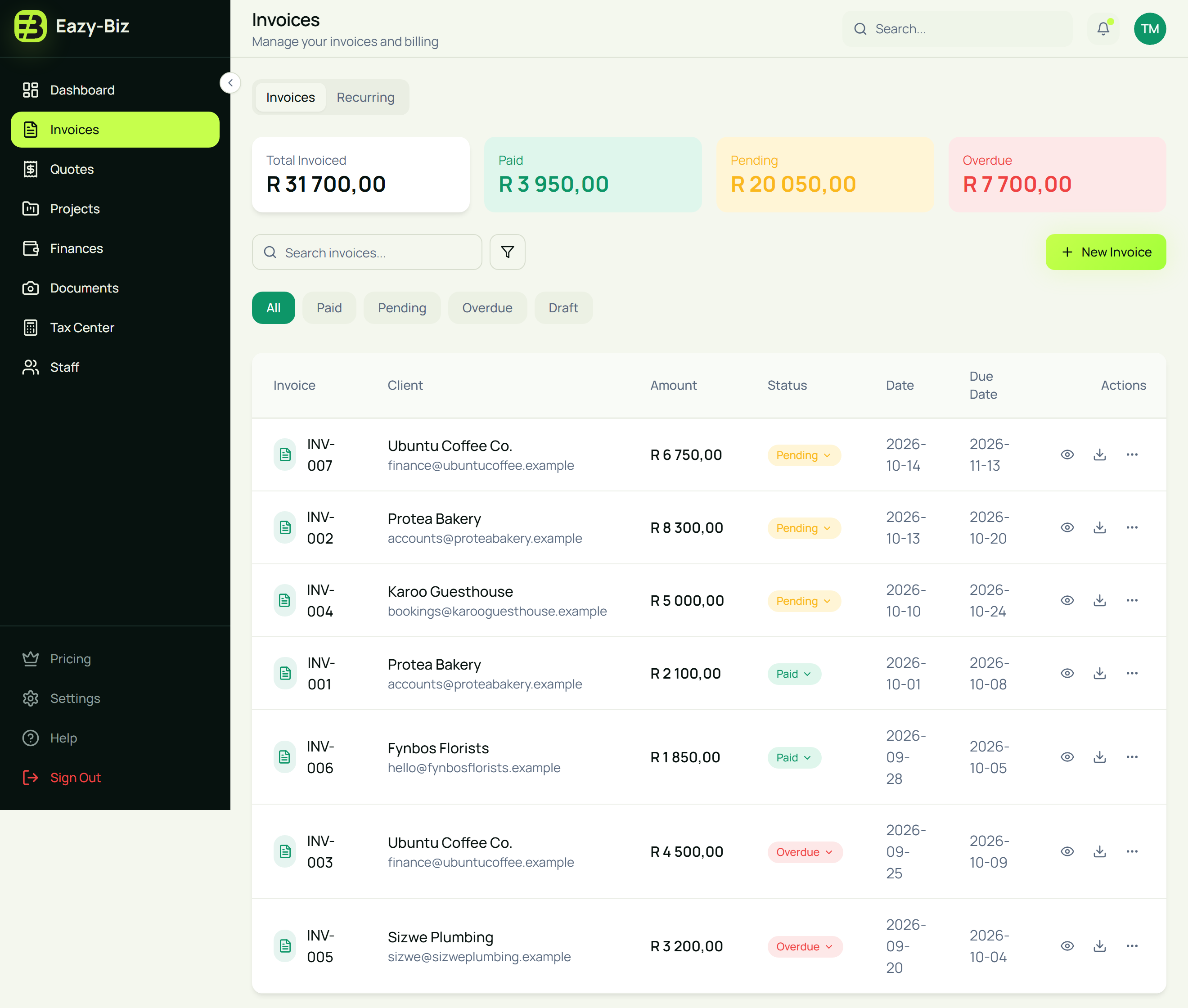
The cards at the top add up your invoices for you:
- Total Invoiced. Everything you have invoiced.
- Paid. Money you have marked as received.
- Pending. Sent and waiting for payment.
- Overdue. Past the due date and still unpaid.
You can search the list by client name or invoice number, and filter it by status.
Always use the invoice number when you discuss payment with a client. It means you are both talking about the same document, which matters once you have done several jobs for them.
New to invoicing? Start with our guide to creating and sending your first invoice.
2. Give every invoice a clear due date
It is hard to follow up consistently when nobody knows when payment was due.
Agree on payment terms before you start the work, then set the Due Date on the invoice to match. In the Notes box, add a line like this:
Payment due by 24 October 2026. Please use INV-004 as your payment reference.
A specific date helps your client plan the payment and tells you exactly when a reminder is needed.
If you invoice by project milestone, say which milestone the invoice covers in the line item description, for example "Booking website - phase 1".
3. Keep each invoice's status up to date
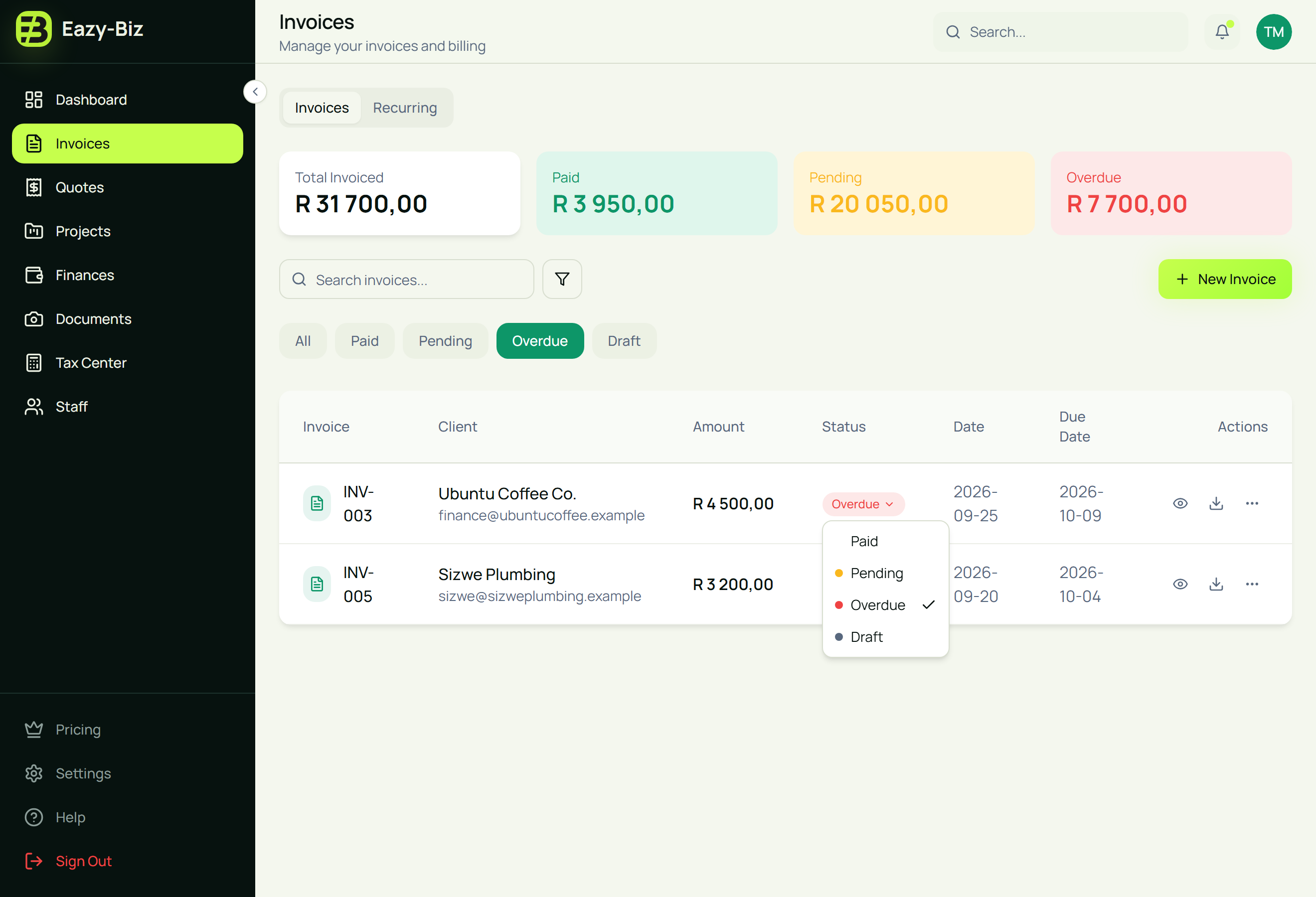
Every invoice in Eazy-Biz has a status. Click the status in the list to change it.
| Status | What it means | Your next step |
|---|---|---|
| Draft | Created but not sent yet. | Finish it and send it. |
| Pending | Sent, and the due date has not passed. | Keep it on your review list. |
| Overdue | The due date has passed and money is still owed. | Check for payment, then follow up. |
| Paid | The full amount has arrived and you have checked it. | Nothing. It is done. |
Two things to know:
- An unpaid invoice is not always late. One sent today and due next week is still within its terms. Leave it as Pending.
- You decide when an invoice is overdue. Eazy-Biz does not change the status for you when the due date passes, so moving invoices to Overdue is part of your weekly review.
Once your statuses are up to date, the Overdue filter shows exactly who needs a reminder.
4. Check payments before sending reminders
Before you contact a customer, check your bank account to see whether the money has arrived.
Match each payment to its invoice using the reference, the amount and the client's name. If the reference is unclear, ask the client which invoice the payment covers. When a payment matches, change the invoice to Paid.
What about part-payments?
Eazy-Biz tracks each invoice as a whole, so there is no separate field for a part-payment. If a client pays part of an invoice:
- Leave the invoice as Pending (or Overdue) until the full amount is in.
- Keep a short note of what was received and when, in your diary or task list.
- Ask for the remaining balance, not the original total.
For example, if invoice INV-004 is for R5,000 and the client has paid R2,000, the outstanding balance is R3,000. Your next message should ask for R3,000.
Checking first saves you from chasing money you already have, and keeps your reminders accurate.
5. Set a weekly invoice review
Pick one day a week to review your invoices. A fixed slot is easier to keep than checking whenever you remember.
During your review:
- Check your bank account for new payments.
- Mark matching invoices as Paid.
- Move anything past its due date from Pending to Overdue.
- Open the Overdue filter and send the follow-ups you need.
- Note any payment dates clients have promised.
Friday morning works well for many people, before you plan the following week.
The Dashboard gives you the same totals at a glance, so you can see what is pending and overdue as soon as you sign in.
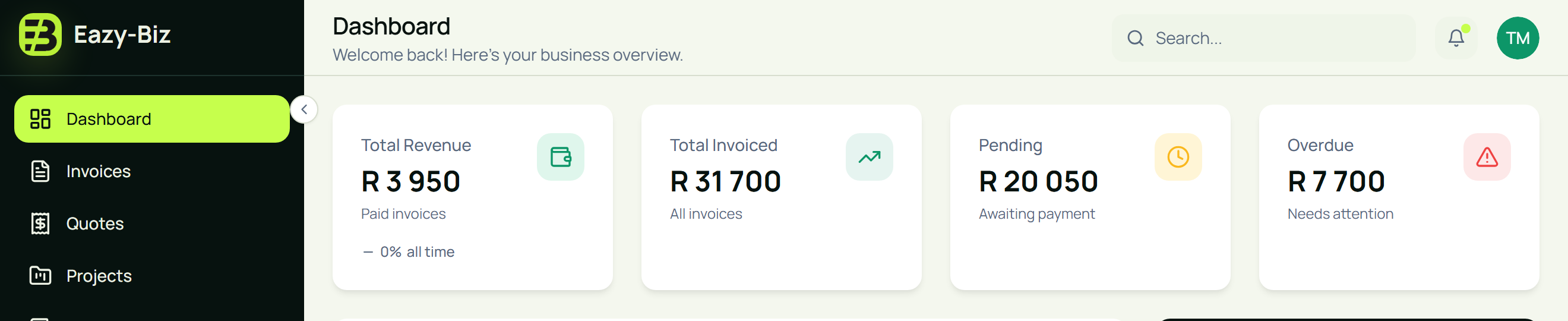
The aim is to make invoice tracking a small weekly task instead of a stressful month-end catch-up.
6. Send a polite, specific payment reminder
A useful reminder gives the customer everything they need to pay.
Include the invoice number, the amount still owed and the original due date. Download the invoice PDF again from your Invoices list and attach it, so the client does not have to search for it.
For example:
Hi [Client Name],
I'm following up on invoice [invoice number] for [amount], which was due on [date].
Please could you confirm when we can expect payment? I've attached the invoice again for convenience.
If payment has already been made, please send me the payment reference so I can check and update our records.
Thank you, [Your Name]
Keep the tone professional. A late payment is often down to an overlooked email, a missing reference or an approval that is stuck with someone else.
7. Keep a note of follow-ups
After you contact a customer, write down when you followed up and what they said. A short note is enough:
21 October: Client confirmed payment is scheduled for 23 October. Check again on 26 October.
Keep these notes in your calendar or task list rather than on the invoice itself. Anything you type in an invoice's Notes box prints on the PDF your client sees.
If a promised date passes, follow up again and refer to the earlier conversation.
8. Use outstanding invoices to plan ahead
Money invoiced is not money received.
If clients owe you R20,000, you cannot use that money to pay suppliers or cover your own costs until it arrives.
On the Standard and Pro plans, the Forecasting tab under Finances lists your pending invoices by due date and projects your balance over the next 30, 60 and 90 days.
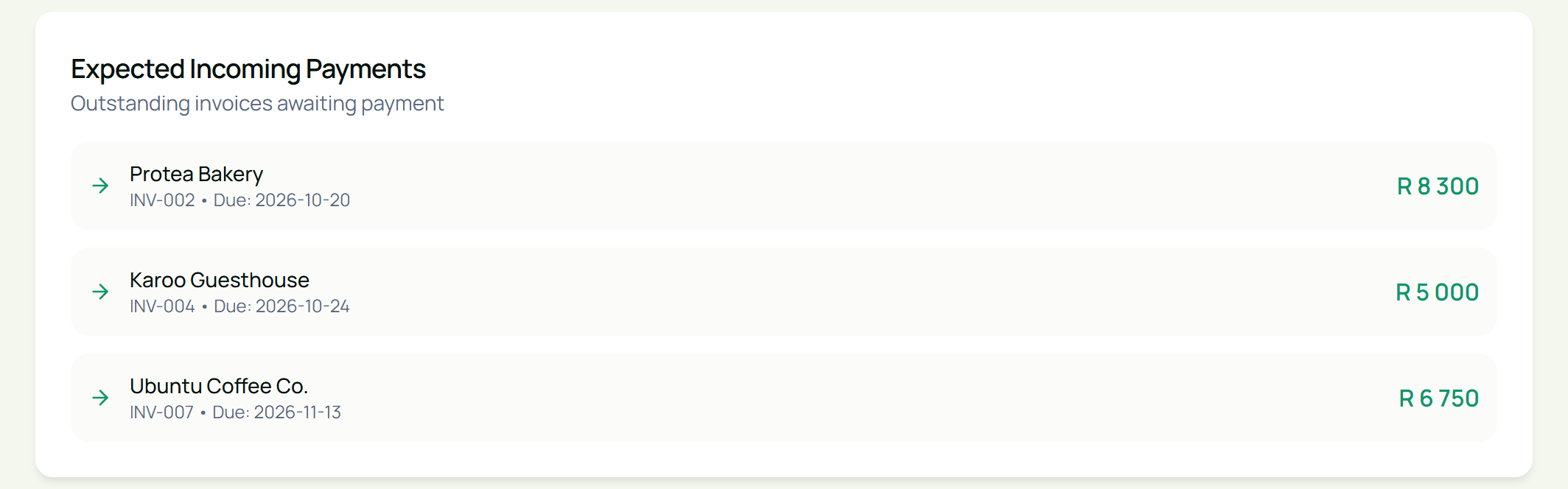
Compare what is coming in with the bills you need to pay. Be careful about counting on overdue invoices until the money is actually in your account.
Frequently asked questions
Which spreadsheet feature shows only unpaid invoices?
Use Filter on the status column. In Excel, choose Data, then Filter, and untick Paid in the Status column. In Google Sheets, choose Data, then Create a filter. A filter hides paid invoices without deleting them, so your full list stays intact.
How often should I check unpaid invoices?
Once a week is a practical starting point. Check more often if you send a lot of invoices or rely on a few large payments.
Does Eazy-Biz mark invoices as overdue automatically?
No. You change an invoice's status yourself from the Invoices list. Moving invoices past their due date to Overdue is a quick part of your weekly review.
When should I follow up on an overdue invoice?
Once the agreed due date has passed, check your bank account for the payment, then send a polite reminder. Follow up on a consistent schedule, and respect any payment arrangement you have agreed with the client.
What if a client has only paid part of an invoice?
Leave the invoice as Pending or Overdue until the balance is paid, keep a note of what you received, and make sure your reminder asks for the amount still owed.
How does Eazy-Biz help with unpaid invoices?
Your invoices sit in one list with a status, a due date and a total for what is paid, pending and overdue. You can filter by status, download any invoice again as a PDF, and on paid plans see expected payments in your cash flow forecast.
Make unpaid invoices easier to manage
You do not need a complicated system to stay on top of customer payments. Keep your invoices in one place, set clear due dates, review them every week and follow up with the right information.
Get started with Eazy-Biz and see who owes you at a glance.
This article is general information for South African business owners and is not tax, legal, or financial advice. Rules and thresholds change, so confirm your position with SARS or a registered tax practitioner before acting on it.